


It's a familiar story - you have just found the perfect search or series of searches in the EBSCO database of choice (probably the Discovery Service or Business Searching Interface) and you want to save it to come back to later. But... how?
There are three ways to save things in EBSCO databases
Save your searches
Save your search
Just above your search results there are drop down menus for how many search results should be shown per page, how they should be sorted and a curious three dot menu button. Click on the menu button and "Save search" appears. Click on this and EBSCO will save your search.
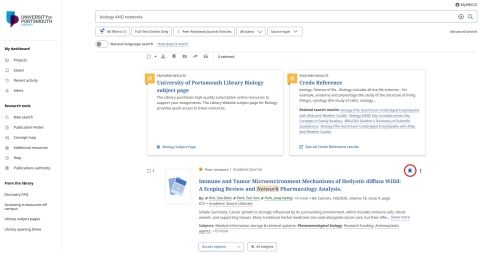
Save individual search results in a hurry
Sometimes you want to save the most relevant articles you have found to come back to later. You can click on the tag icon to the right of each search result to add it to your saved items
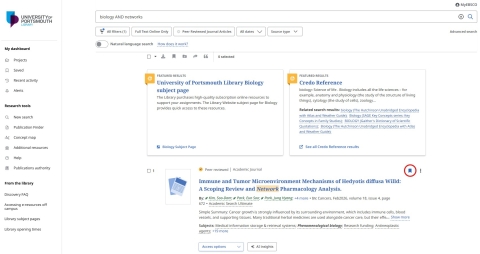
Save articles to project folders
Click on the three dots next to an article instead of the tag icon and you can choose to add it to a project folders. You can create numerous folders and name them. This is really helpful if you are researching things for different assignments at the same time, because the project folders help keep your stuff separate.
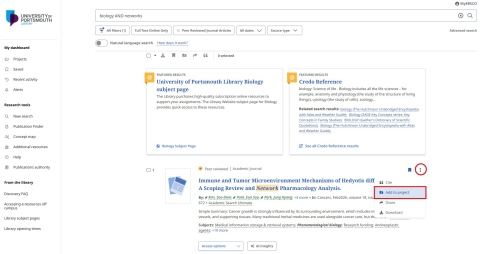
Finding your saved searches
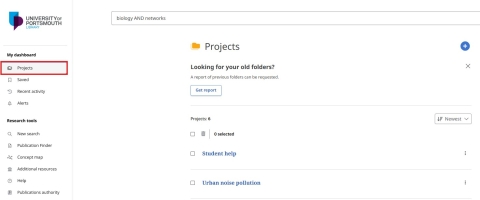
However you save them, all your saved articles, project folders and searches will end up in one place. Sadly, this is again somewhat hidden, but all of them can be found under "My dashboard" on the left side of the results screen.
Projects
Projects are listed under "Projects". Click on this button and all the project folders you have created will be displayed. Click on each to open it and view the articles saved inside.
Saved articles (not in project folders)
Click Saved in the left sidebar under My dashboard and you will be shown all your other saved articles.
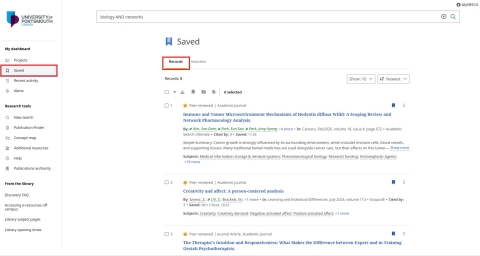
Saved searches
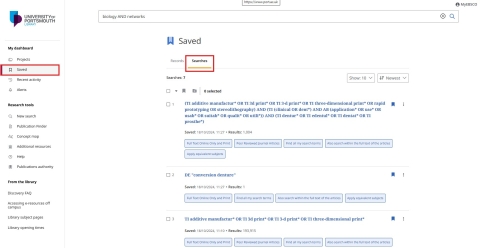
Saved searches are a little more hidden. Click on the Saved button in the left side bar, and then choose the "Searches" tab above the saved search results to display searches you have saved rather than articles.
Want a walkthrough?
If you would like a more detailed walkthrough of how to do anything with Library resources or you are stuck for any reason, please pop in and see us at the Library Help Desk (11 am - 3 pm) or chat with us online 24/7.